How to export EmDash content as CSV or JSON
Choose the right export format and content version, and understand what a collection export does not back up.
Choose the export for the job
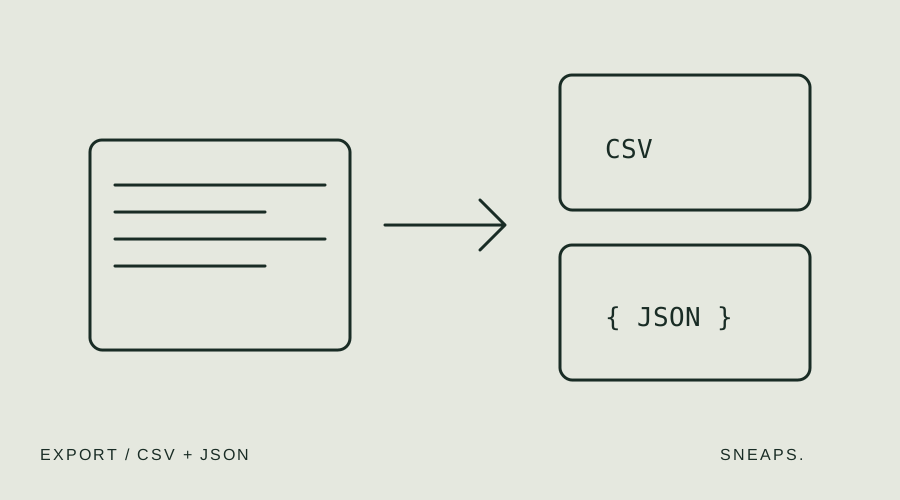
Use CSV when people need to review rows in a spreadsheet. Use JSON when preserving stored field values is the priority. The Sneaps Import/Export plugin gives administrators both options from a collection export screen.
First write down the purpose of the export: editorial review, bulk corrections, a transfer to another project or a copy before an import. That choice determines which collection, publication status and content version you should include. A file that looks complete in a spreadsheet may still exclude the unpublished edits you meant to keep.
Select entries and the content version
Open Import/Export, switch to Export and select a collection. You can choose all entries, published entries or drafts. Then choose Latest or Published only. These are different decisions: an entry’s publication status and the version of its content are not interchangeable.
Latest represents what the editor shows, including unpublished changes. Published only represents the live version. For a pre-editing copy, Latest is usually the version you want to inspect. For an audit of live content, Published only can be the more relevant choice. Label the downloaded file with its collection, date and version.
CSV is convenient, but it converts values
CSV is a text format. The plugin converts rich text to Markdown and lists or objects to JSON text. This makes a spreadsheet useful for review, but you should check what your spreadsheet application does to dates, numbers, encoding and leading zeroes when you open and save it.
The export also guards against spreadsheet formulas by prefixing certain cells with an apostrophe. Do not strip those characters indiscriminately: they are intentional. The importer handles the protection on reimport. Keep an untouched original export and edit a working copy rather than making the only copy your experiment.
JSON preserves structure, not your whole website
JSON keeps values in their stored form, making it useful for inspecting structured fields and transferring collection data. It is less comfortable for a nontechnical spreadsheet workflow, but avoids the CSV conversion of rich text and objects.
Neither format is a full backup of your EmDash installation. Collection data does not recreate your Astro templates, deployment configuration, secrets, accounts or media storage. Also distinguish export from import support: a JSON export can contain values for fields that this plugin cannot yet import. Keep your database and media backup process separate and test restoration independently.
Reimport without overwriting the wrong version
Before reimporting a file, check where it came from and which version it contains. Reimporting a Published only export can replace newer unpublished edits with the older live text. Read the preview rather than assuming an export is harmless to reapply.
Try a few entries first, keep their IDs or slugs and decide whether you intend to create, update or both. Review locale and publication settings. Media, references, repeaters and blocks need a separate plan in the current release. A repeatable workflow records the file used and checks the saved result, instead of relying on a reassuring filename.
Prepare a CSV importKeep exports manageable
The current export limit is 20,000 entries. For a large content project, plan collection-level exports and check the counts rather than treating a successful download as proof that everything is present. Download an empty template when you need column names for a new import.
Keep content exports in an appropriate private location: they can contain unpublished text or other information that should not be public. The plugin itself reads and transfers data through your own site, without external analytics or a separate storage service. Once downloaded, managing the file is your responsibility.